All tutorials
Cable Creator
1
Cable Creator Overview
Welcome to the Cable Creator
The Cable Creator allows you to design custom multi-conductor cables. This tutorial demonstrates creating an Igus CFBUS-020 cable and using it in a harness design.
- Define cable basic properties and specifications
- Configure individual conductor properties
- Set shielding and jacket materials
- Use created cables in harness designs
Example: We'll create an Igus CFBUS-020, a 4-conductor shielded cable commonly used in industrial applications.
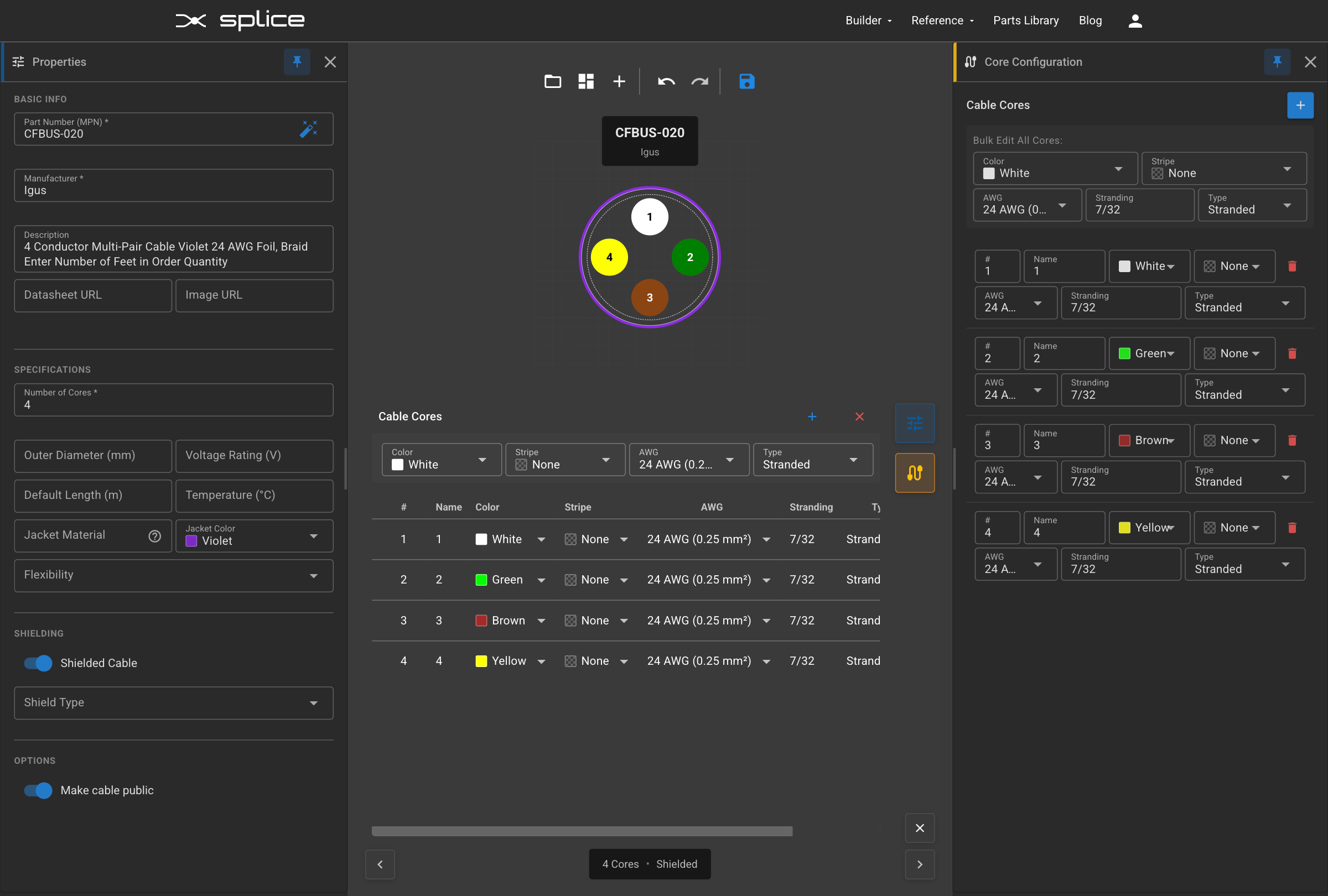
Cable Creator interface
2
Basic Cable Properties
Setting Up Cable Specifications
Start by defining the fundamental properties of your cable including manufacturer, part number, and basic specifications.
- Part Number: CFBUS-020 (manufacturer's product number)
- Manufacturer: Igus (specify the cable manufacturer)
- Description: Detailed description of the cable's purpose and features
- Datasheet URL: Link to manufacturer's documentation
- Image URL: Link to product image for visual reference
Basic cable properties form
3
Cable Specifications & Core Configuration
Configuring Cable Physical Properties
Define the physical characteristics of your cable including core count, shielding, outer diameter, and individual conductor specifications.
- Core Count: 4 conductors for the CFBUS-020
- Shielded Cable: Specify that the cable has a braided shield
- Outer Diameter: 6.5mm for the cable jacket
- Voltage Rating: 50V maximum operating voltage
- Jacket Material: Thermoplastic Elastomer (TPE)
- Flexibility: Flexible for dynamic applications
Note: Each conductor is 24 AWG stranded with 7/32 stranding configuration in the CFBUS-020. Colors for the individual cores can be set in the Cable Cores Configuration.
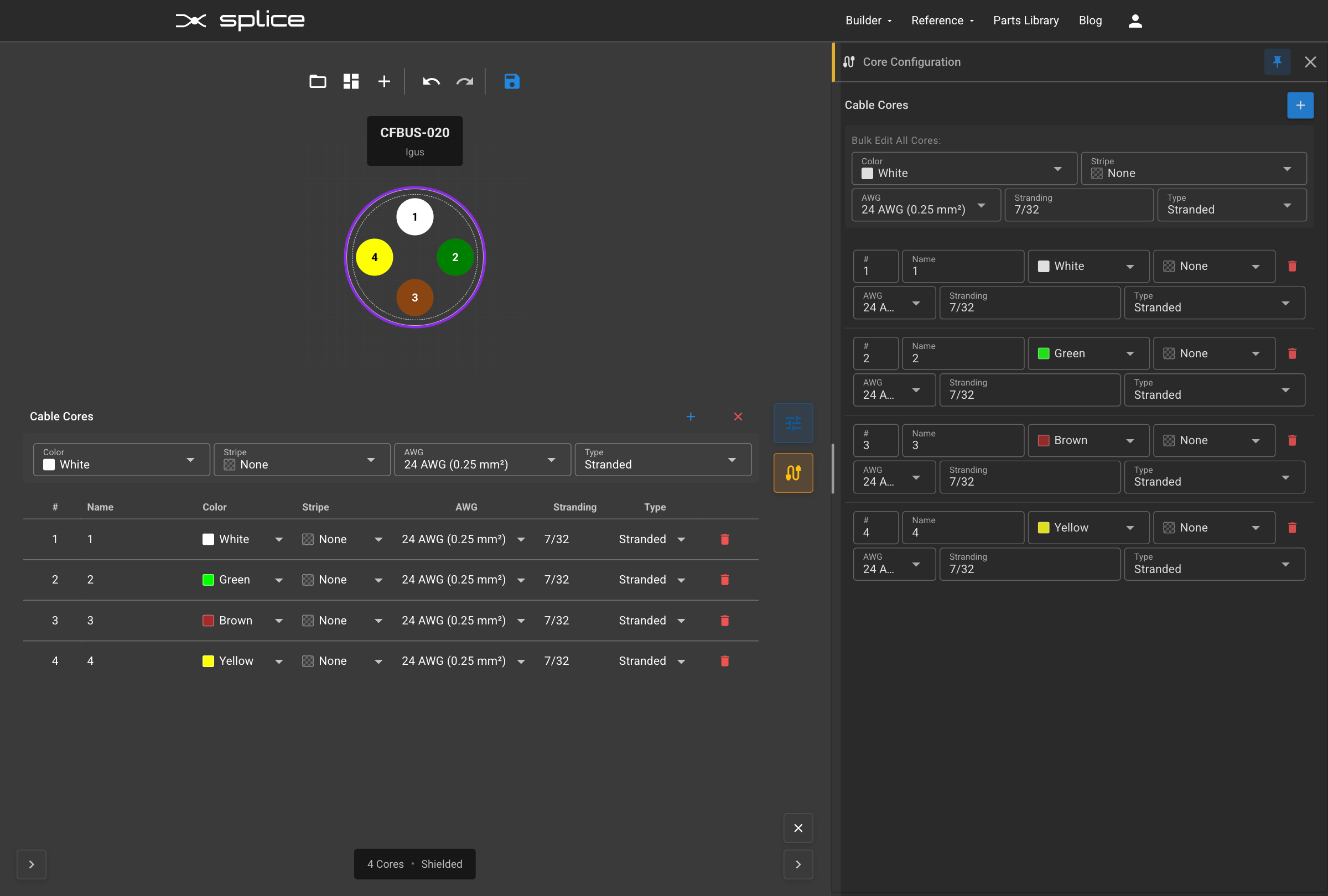
Cable specifications and core configuration
4
Adding Cable to Parts Library
Creating and Saving Your Custom Cable
Once you've configured all cable properties, create the cable to add it to your parts library for future use in harness designs.
- Review all cable specifications before creating
- Click CREATE CABLE to add to parts library
- Cable appears in the CABLES tab with proper categorization
- Enable "Make this cable publicly available" to share with other users
Success: Your CFBUS-020 cable is now available in the parts library with full specifications and 4-core shielded configuration.
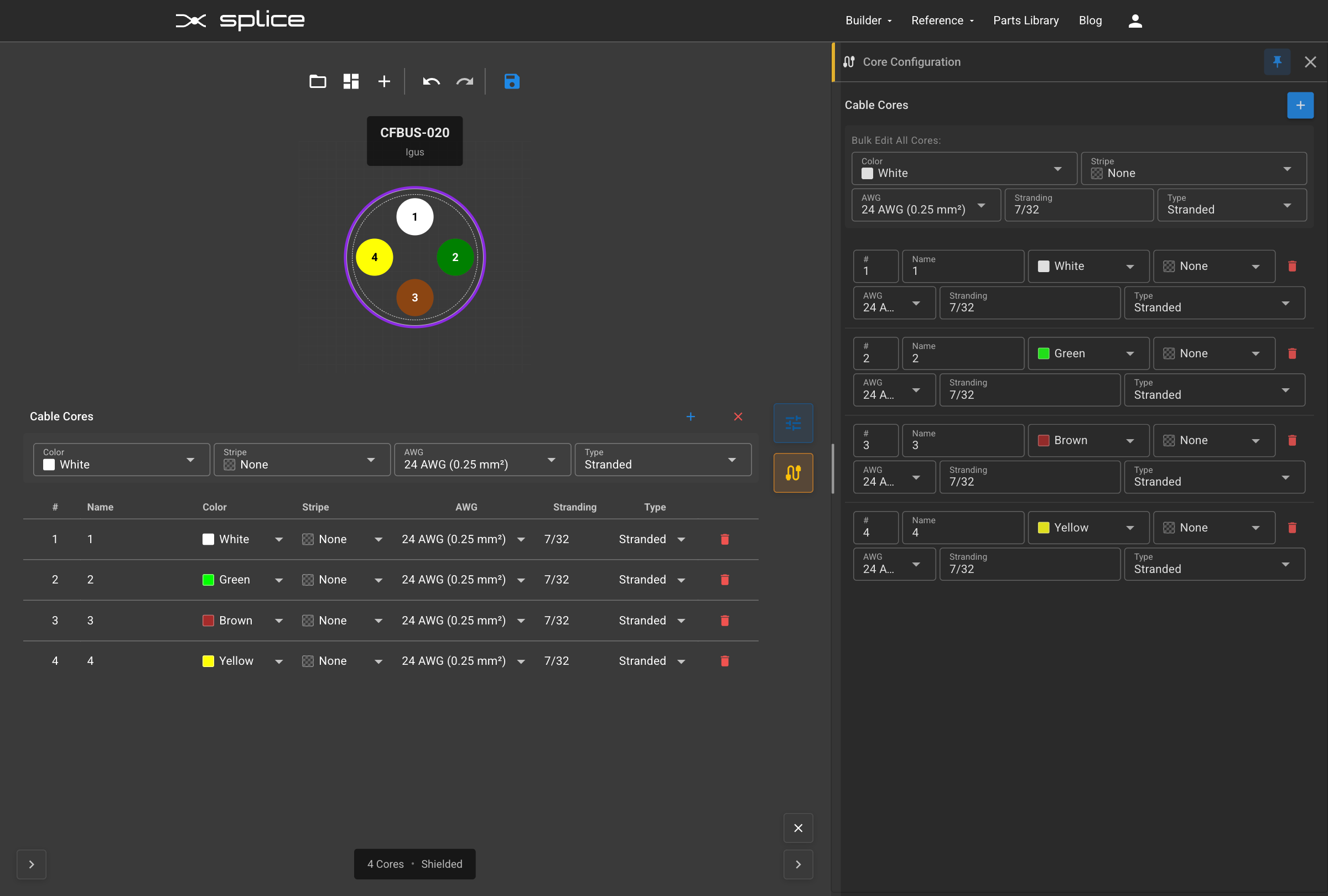
Cable added to parts library
5
Documentation & Integration
Using Custom Cable in Harness Design
Now that your CFBUS-020 cable is in the parts library, you can use it in harness designs alongside connectors and other components.
- Navigate to harness design workspace
- Select your custom cable from the CABLES tab
- Drag and drop cable into the design canvas
- Add connectors and create wire connections using individual conductors
- Color-coded conductors: white, green, brown, yellow
- Each conductor shows proper AWG and stranding specifications
Result: Your harness now includes the custom CFBUS-020 cable with all 4 conductors properly connected and documented.
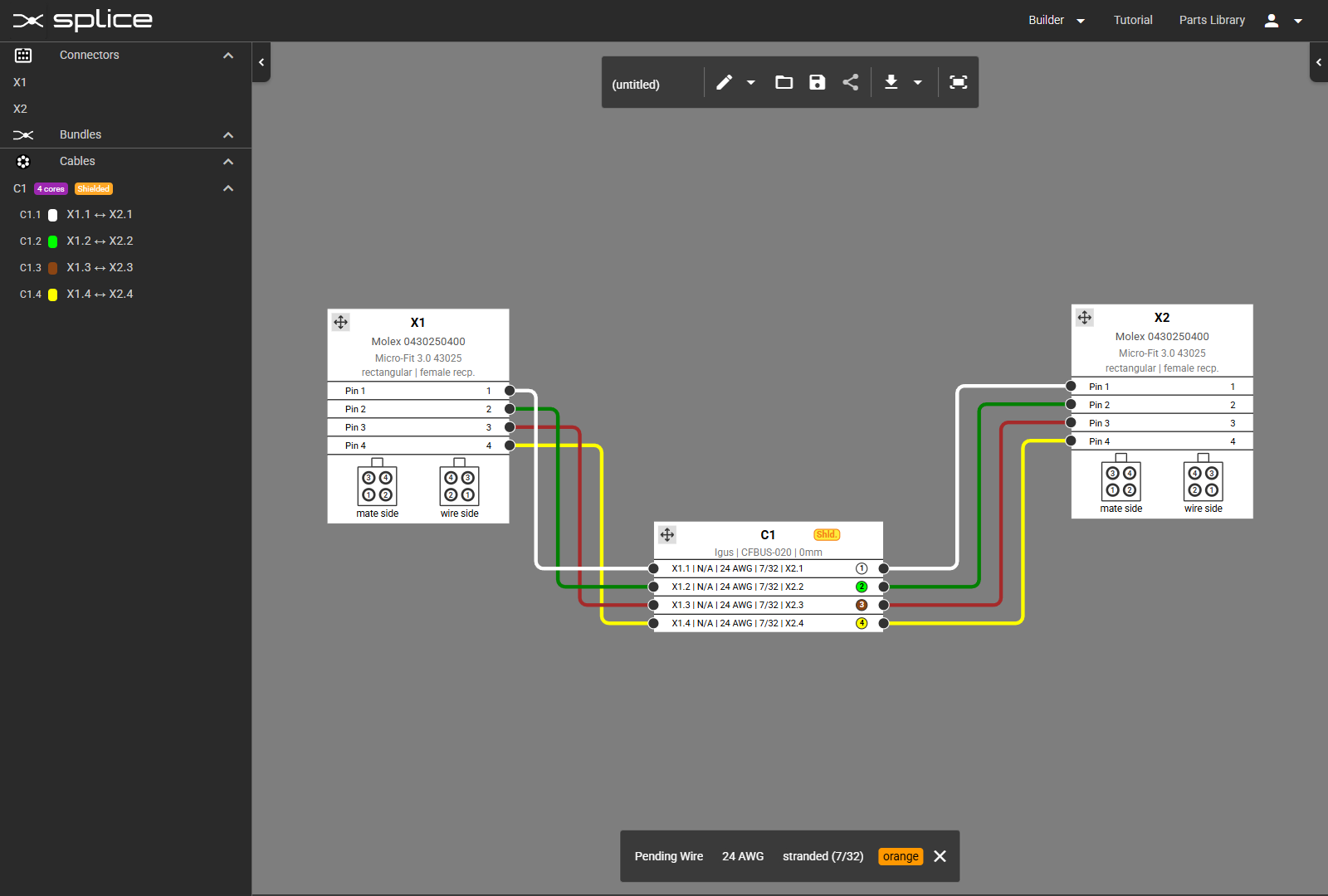
Complete harness with CFBUS-020 cable