GitHub Integration
Link a Splice design — either a plan (Project Workflow) or an assembly (Harness Builder) — to a GitHub repo. Splice commits the design JSON plus a render workflow, and every push to the design file (or a manual workflow run) auto-produces PDFs, PNGs, SVGs, BOMs, and other exports. Rendered outputs are committed back to the repo and uploaded as workflow artifacts.
One action image (splice-cad/plan-export-action) handles both design types. You can use it three ways:
- In-app link + push — Splice manages the commit for you (recommended for most users).
- Manual upload to GitHub — skip the link, commit JSON + workflow to your own repo by hand.
- Run the action locally — render JSON to PDF/PNG/etc. without GitHub at all.
1. In-app link + push
Linking a design
- Open the plan or assembly in Splice.
- In the top toolbar (or the row menu on the home page), click the GitHub icon.
- Fill out the dialog:
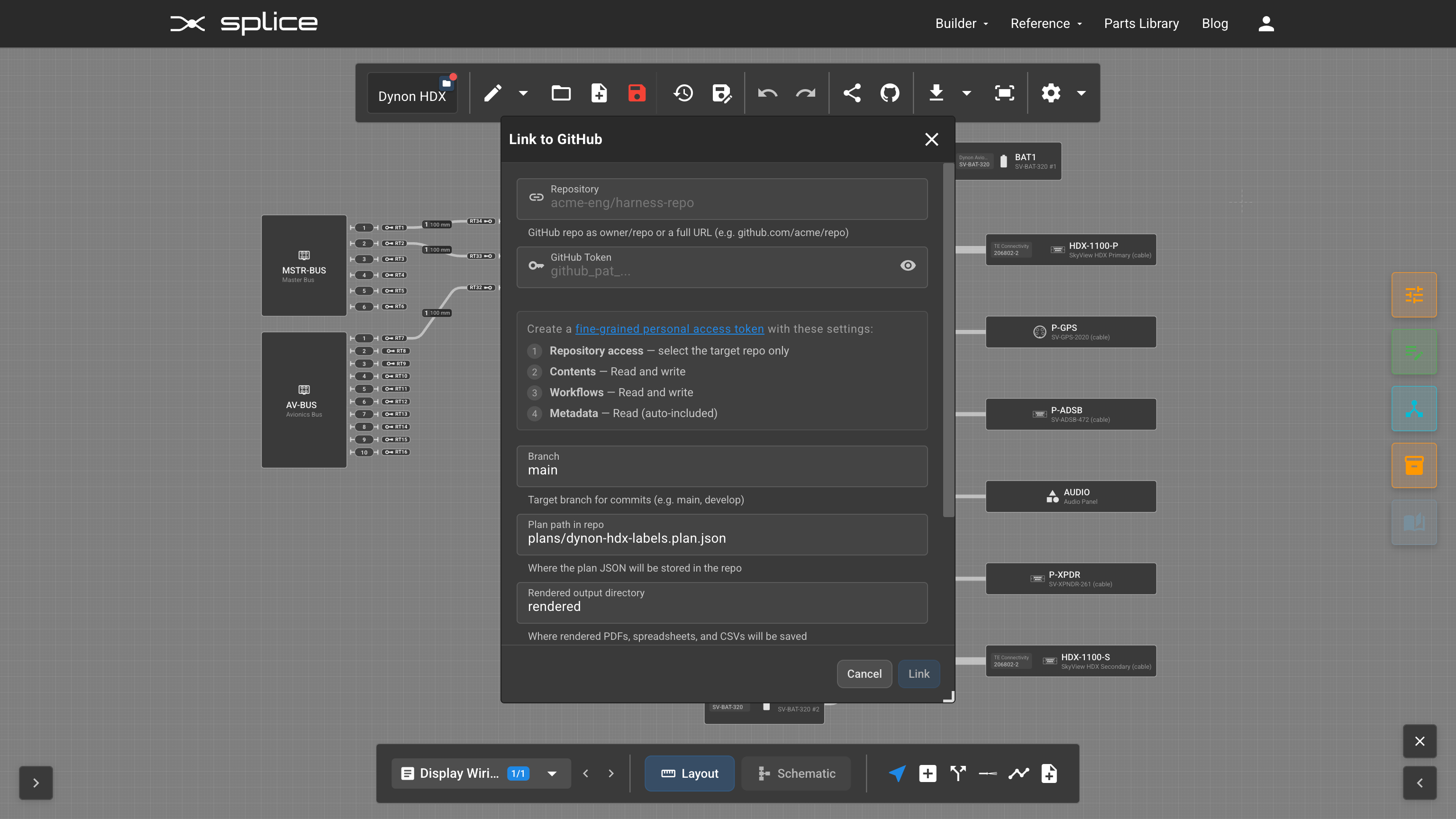
| Field | Description |
|---|---|
| Repository | owner/repo or full URL (e.g. acme/harnesses or github.com/acme/harnesses). |
| GitHub Token | A fine-grained PAT. The dialog shows the required permissions inline — Repository access (target repo only), Contents: Read and write, Workflows: Read and write, Metadata: Read (auto-included). Create one at GitHub → Settings → Developer settings → Personal access tokens → Fine-grained tokens. |
| Branch | Target branch for commits. Defaults to main. |
| Plan path in repo / Harness path in repo | Where the design JSON lives. Default plans/my-harness.plan.json for plans, schematics/my-harness_schema.json for assemblies. |
| Rendered output directory | Where rendered outputs land. Defaults to rendered. |
| Exports | Check which export targets to produce on each run (see table below). |
- Click Link. Splice validates the token, encrypts + stores it, and the toolbar button becomes a GitHub menu.
Pushing
GitHub → Push to GitHub commits three files to the repo:
- The design JSON at the configured path. This matches the shape of Download JSON from Harness Builder (or the plan Export menu) — fully-hydrated BOM with
.partexpanded on every entry. splice.yml— the render config (design type, export targets, output directory).- A workflow file —
.github/workflows/render.ymlfor plans,.github/workflows/render-harness.ymlfor assemblies. Only created if one doesn’t already exist, so a plan and an assembly can coexist in the same repo without clashing.
On every subsequent push to the design file (from Splice or directly), the render workflow fires, produces the artifacts, and commits them back to the configured output directory. Outputs are also uploaded as workflow artifacts.
Editing + unlinking
GitHub → Edit Link changes any field (repo, branch, path, export targets, token) without re-committing files. GitHub → Unlink removes the Splice-side link; files already in the repo are left untouched.
2. Manual upload to GitHub (no in-app link)
If you’d rather manage the repo yourself — e.g. the repo already has its own workflow scaffolding, or you don’t want to paste a PAT into Splice — you can skip the link dialog entirely.
- From Harness Builder: Download & Upload → Download JSON. From a plan: Export → Download Plan JSON. Save it to your repo (e.g.
schematics/my-harness_schema.jsonorplans/my-harness.plan.json). - Add a
splice.ymlnext to it (or at repo root) — see examples below. - Add a workflow at
.github/workflows/render.yml:
name: Render splice design

on:
  push:
    paths:
      - 'schematics/**'      # adjust to match your design path
      - 'splice.yml'
      - '.github/workflows/render.yml'
  workflow_dispatch:

permissions:
  contents: write

jobs:
  render:
    runs-on: ubuntu-latest
    steps:
      - uses: actions/checkout@v4

      - uses: splice-cad/plan-export-action@v0
        # Point at the splice.yml if not at repo root:
        # with:
        #   config: schematics/splice.yml

      - uses: actions/upload-artifact@v4
        with:
          name: rendered
          path: rendered/
if-no-files-found: error- Commit and push. The action pulls
ghcr.io/splice-cad/plan-export-action:v0, renders the design, and uploads the output directory as a workflow artifact.
The committed JSON is the source of truth — update it by re-downloading from Splice and committing the new file. No PAT is required on the Splice side because Splice never touches your repo.
3. Run the action locally
The same Docker image that runs in the GitHub workflow can render a design on your own machine.
One-off render
# Stage the JSON + a splice.yml in a workspace dir
mkdir -p /tmp/render/schematics /tmp/render/rendered
cp my-harness_schema.json /tmp/render/schematics/
cat > /tmp/render/schematics/splice.yml <<'YML'
design:
  type: harness
  design-path: schematics/my-harness_schema.json
exports:
  formats:
    - schematic-pdf
    - physical-all-pages-pdf
    - bom-csv
  output-dir: rendered
YML

# Run the action against that workspace
docker run --rm \
  -v /tmp/render:/github/workspace \
  -e INPUT_CONFIG=schematics/splice.yml \
  ghcr.io/splice-cad/plan-export-action:v0

# Outputs land in /tmp/render/rendered/
ls /tmp/render/rendered/
For a plan, drop design.type: harness and point design.design-path at the .plan.json.
Useful env vars
| Var | Equivalent with: input | Purpose |
|---|---|---|
INPUT_CONFIG | config | Path to splice.yml (relative to workspace). |
INPUT_PLAN_PATH | plan-path | Override the design path from splice.yml. |
INPUT_DESIGN_TYPE | design-type | Force plan or harness (otherwise auto-detected from JSON shape). |
INPUT_ONLY | only | Comma-separated export targets, overrides exports.formats. |
INPUT_OUTPUT_DIR | output-dir | Override output directory. |
Export targets
Plan
| Target | Output |
|---|---|
| All Pages PDF (Layout + Schematic) | Multi-page PDF, layout + schematic view for every plan page |
| All Pages PDF (Layout only) | Multi-page PDF, layout view per page |
| All Pages PDF (Schematic only) | Multi-page PDF, schematic view per page |
| BOM (XLSX / CSV / PDF) | Bill of materials in three formats |
| Connection Table (XLSX) | Pin-level wiring data grouped by connector |
| ICD (PDF) | Interface control document with all selected ICD sheets |
See Export & Import for full plan export details.
Assembly
| Target | Output |
|---|---|
| Schematic PDF / PNG / SVG | Schematic diagram in three formats |
| Physical Drawing — All Sheets (PDF) | Multi-page PDF covering every drawing sheet |
| Physical Drawing (PDF / PNG / SVG) | Active drawing sheet in three formats |
| BOM (XLSX / CSV / PDF) | Bill of materials in three formats |
Physical targets silently skip if the assembly has no physical layout configured. See PDF Export Options for in-app export details.
The splice.yml config
Plan
design:
  plan-path: plans/my-harness.plan.json

exports:
  formats:
    - all-pages-pdf
    - bom-xlsx
    - bom-csv
    - connection-table-xlsx
  output-dir: rendered
Assembly
design:
  type: harness
  design-path: schematics/my-harness_schema.json

exports:
  formats:
    - schematic-pdf
    - schematic-png
    - physical-all-pages-pdf
    - bom-xlsx
    - bom-csv
  output-dir: schematics/rendered
You can edit splice.yml in the repo directly — add or remove targets without re-linking. The next push will respect the new config.
Troubleshooting
- “Repo not found” or 403 during link: the PAT lacks access to the repo, or is scoped to the wrong owner. Double-check the PAT repository access list.
- Workflow doesn’t run after push: check GitHub Actions is enabled (Repo Settings → Actions → General), and that the PAT’s
Workflowspermission is set to Read and write. Without the Workflows permission, the workflow-file commit silently fails. - “Unknown export target” in the workflow log: the render action image is older than the target. The image floats via the
@v0tag; wait for the latest Splice release to propagate, or pin to a specific version (e.g.@v0.3.0) in the workflow file. - Need to regenerate the workflow: delete the workflow file from the repo (
.github/workflows/render.ymlorrender-harness.yml) and push from Splice again — a fresh workflow will be created.
Action reference
The render action is published to GitHub Container Registry at ghcr.io/splice-cad/plan-export-action. Tag convention:
| Tag | Meaning |
|---|---|
@v0.x.y | Reproducible — pinned to an exact release |
@v0.x | Floats across patch releases within the minor version |
@v0 | Floats across minor releases — default, used by Splice-generated workflows |
@latest | Floats across major releases |
Source code lives at splice-cad/plan-export-action.