Box Select & Group Repositioning
Select multiple items — components, wire anchors, or cables — and move, auto-route, or delete them in a single action. Splice supports two selection modes depending on which direction you drag.
Window Selection (Drag Right)
Click on an empty area and drag to the right to create a blue solid rectangle. Only items fully enclosed by the rectangle are selected.
Crossing Selection (Drag Left)
Click on an empty area and drag to the left to create a green dashed rectangle. Any item that intersects the rectangle is selected — items don’t need to be fully enclosed.
Window selection (drag right, blue solid) selects fully enclosed items. Crossing selection (drag left, green dashed) selects any intersecting items.
Modifier Keys
- Shift or Ctrl/Cmd — Add to the current selection (items already selected stay selected)
- Alt/Option — Remove items from the current selection
- No modifier — Replace the current selection entirely
You can also Ctrl+Click (or Cmd+Click) individual items to toggle them in and out of the selection.
Group Dragging
When items are selected, their drag handles turn blue. Drag any selected item to reposition the entire group while preserving relative positions.
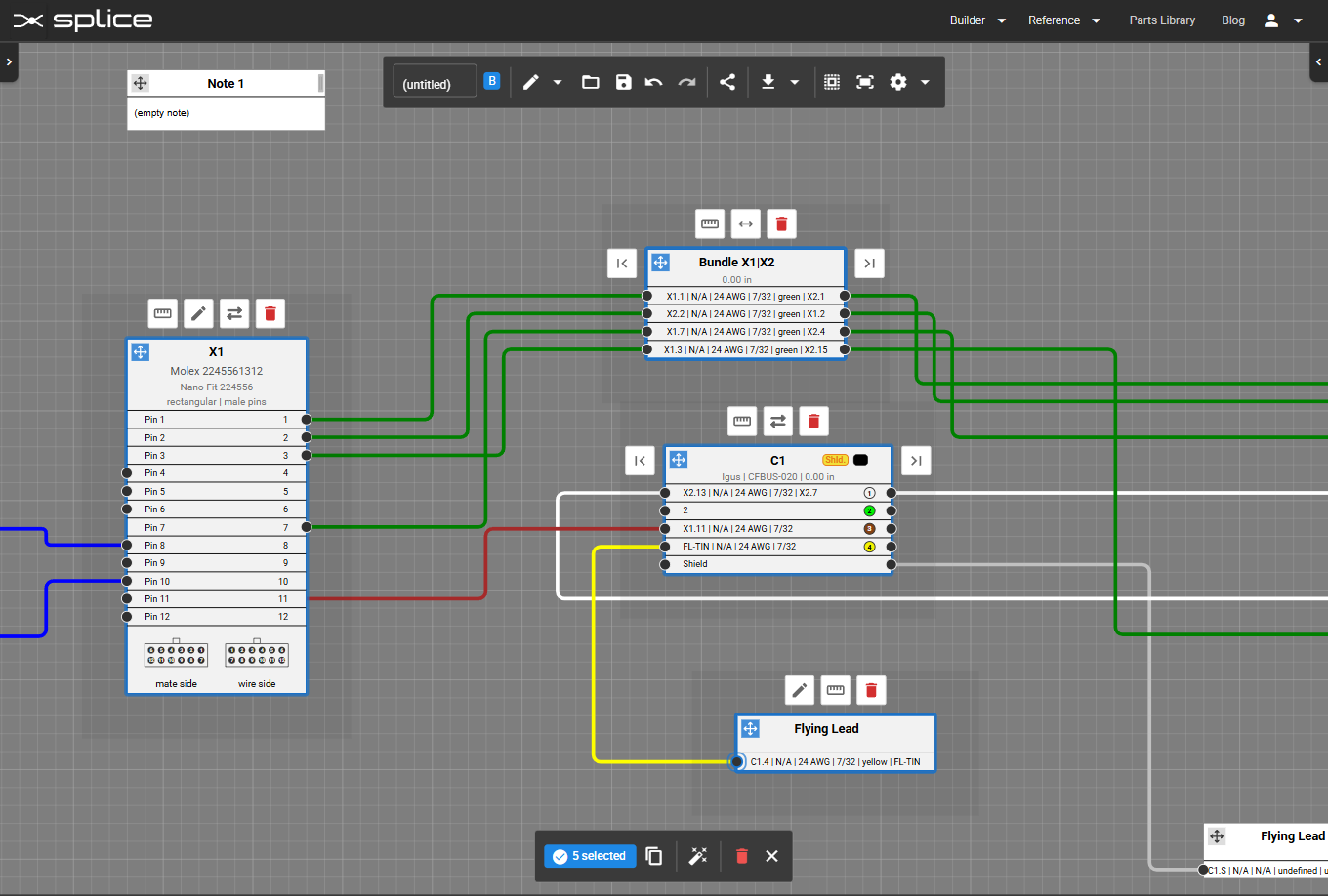 Selected items show blue highlights — drag any one to move the whole group.
Selection Actions
After selection, a toolbar appears at the bottom of the screen with quick actions:
- Auto-route selected wires and cable cores
- Delete selected components
- Copy / Paste connectors and cables
 The bottom toolbar provides quick actions for your selection: auto-route, delete, and copy/paste.