Bulk Property Editor
The Bulk Property Editor is a comprehensive panel for editing harness properties in bulk — connectors, wires, cables, and accessories — without clicking through individual components on the canvas. Open it by pressing E or clicking the Bulk Editor button in the right sidebar. The panel can float on the canvas or be pinned to the dock.
Components Tab
Edit connector properties and manage terminal assignments. The tab has two sub-views:
Pins View
Lists all connectors with expandable pin tables showing pin index, label, function, connected wire/core, and the destination. Pin labels and functions (e.g. CAN_H, GND) are editable inline, and individual connections can be deleted directly. Functions also appear on the connector graphic in the diagram and are preserved when converting between a plan and a harness.
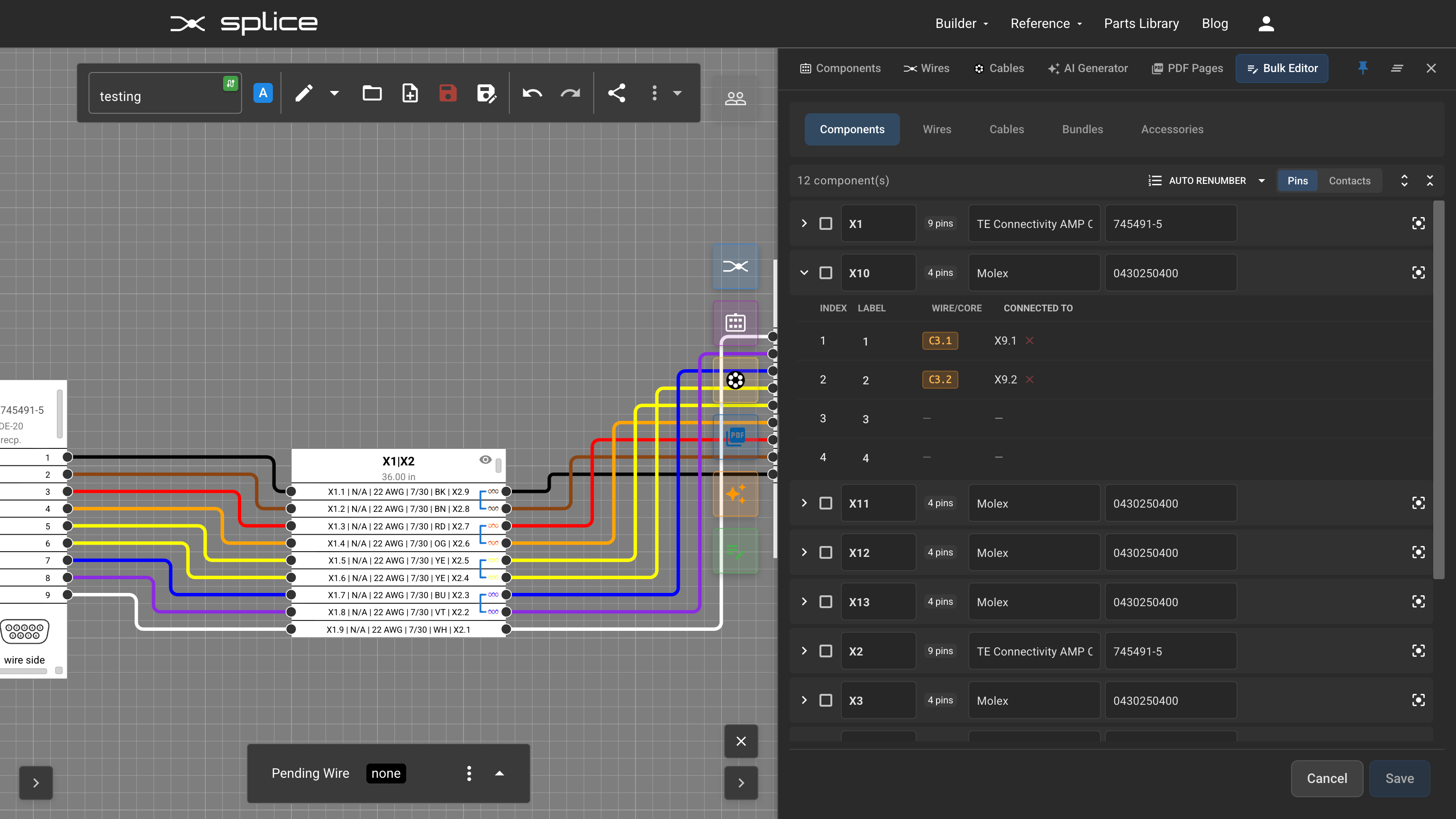 Components tab — Pins view lists all connectors with editable pin labels, wire/core connections, and destinations.
Contacts View
Assign terminal contacts to connector pins. Pins are automatically grouped by the AWG of the wire connected to them:
- Click the search icon to open a picker with compatible contacts for that connector and AWG
- Use “Apply to all [AWG] AWG” to assign the same terminal to every pin in that gauge group
- Clear all terminals for an AWG group with one click
Other component actions include inline editing of designator, manufacturer, and MPN, auto-renumbering connectors (left-to-right or top-to-bottom), and the Bulk Connect dialog when two connectors are selected.
 Contacts view — pins grouped by AWG with a compatible contacts picker showing MPN, gender, AWG range, and termination type.
Wires Tab
Edit wire properties in bulk, organized by bundle. Each bundle header provides controls for setting length, color, stripe, and AWG for all wires in the bundle at once. The tab has two sub-views:
Signals View
Manage the signal for each wire. Columns show color, stripe, AWG, and a single editable Signal per wire. This view also supports twisted pair grouping — select wires and create twist groups, add wires to existing groups, or dissolve pairs.
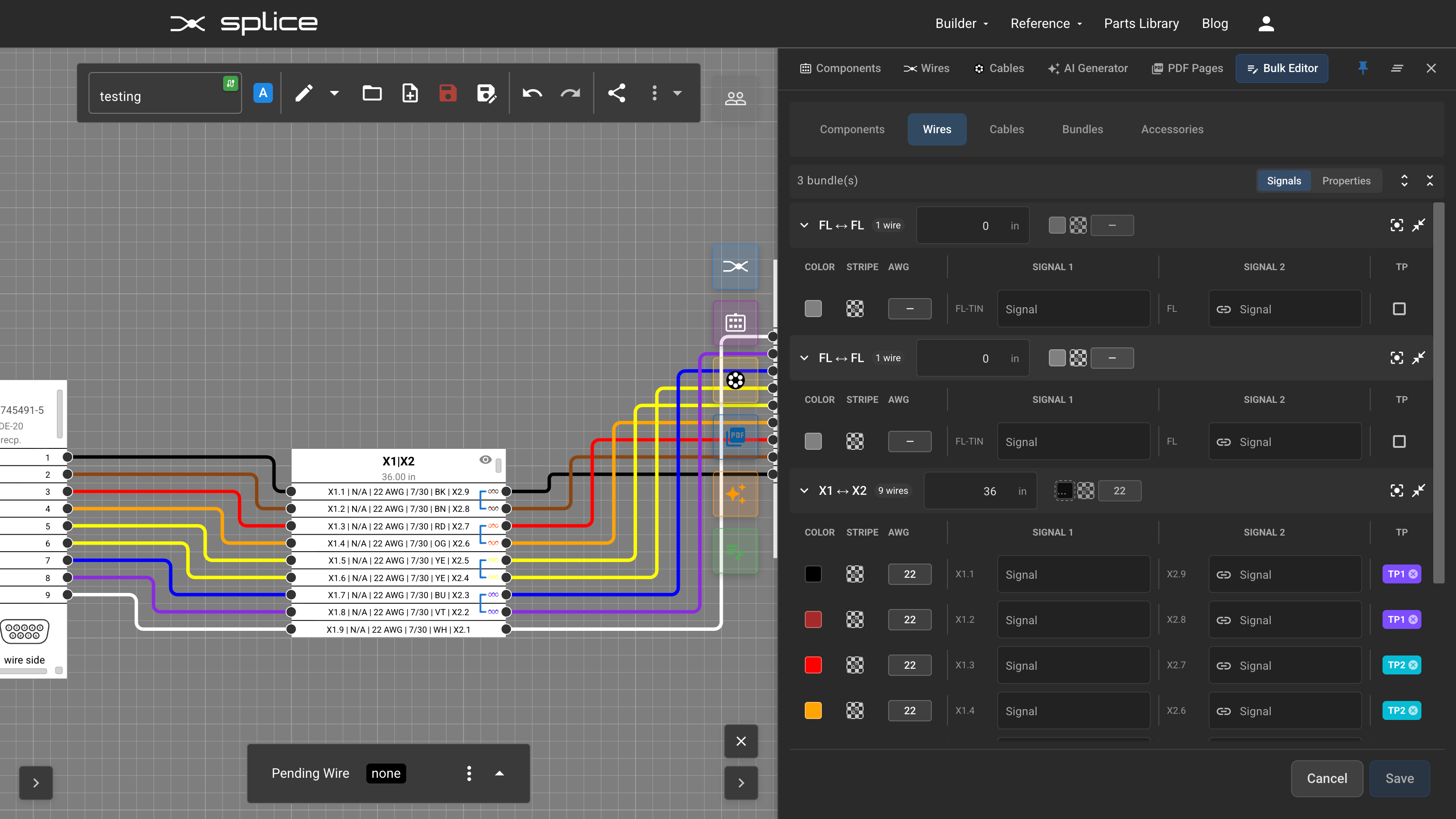 Wires tab — Signals view with editable signal labels and twisted pair grouping (TP1, TP2).
Properties View
Assign wire part numbers (MPNs) and view electrical properties:
- Click the search icon on any wire to find matching parts by AWG, color, and stripe
- Select a wire part to assign its MPN, manufacturer, voltage rating, and certifications
- Copy/paste wire properties between rows — or use “Paste to Similar” to apply to all wires with matching AWG, color, and stripe
- Assignments are non-destructive overrides — original part data is preserved and can be restored with Reset
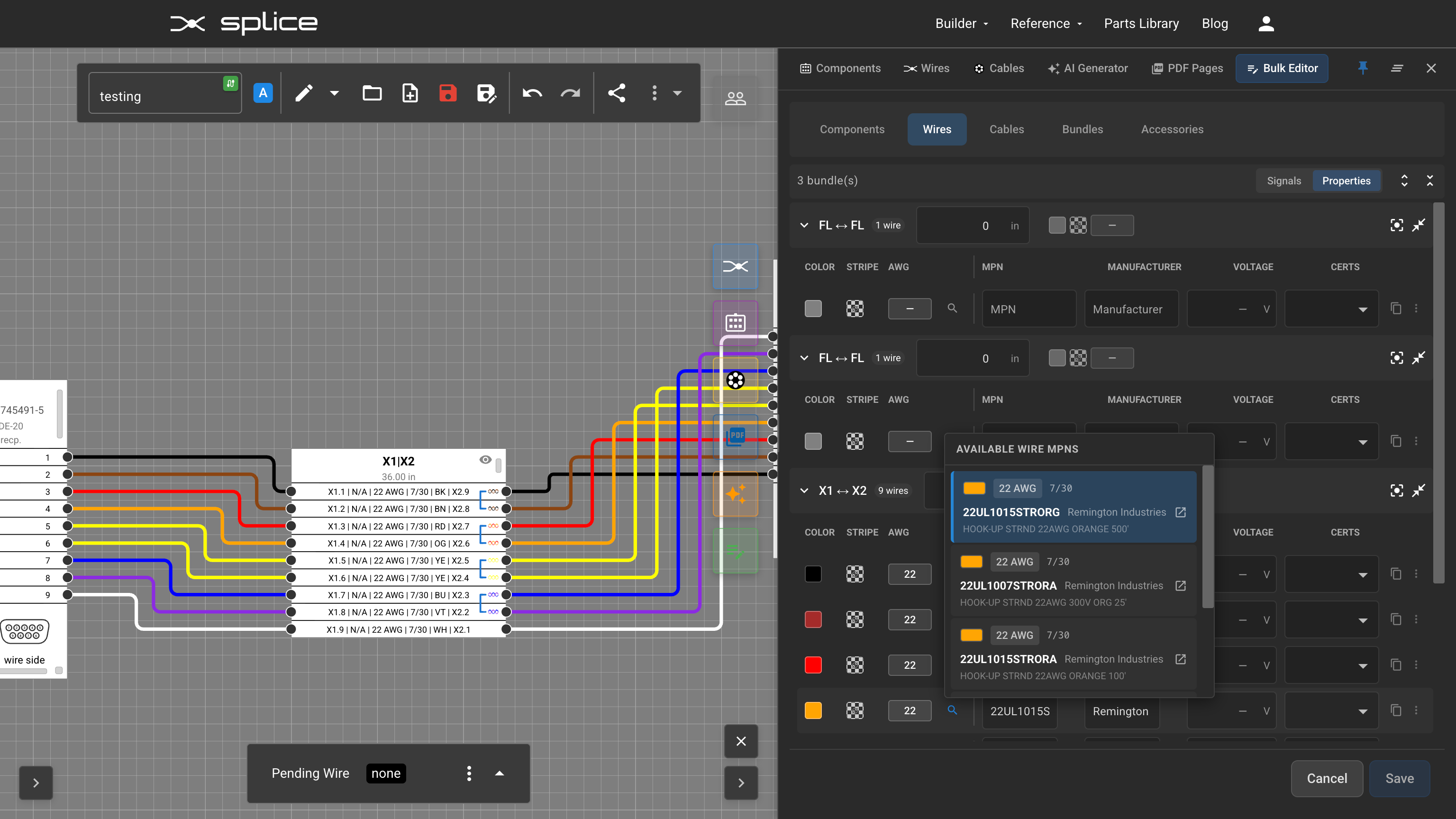 Properties view — search for wire parts by AWG, color, and stripe. Results show MPN, manufacturer, description, and datasheet links.
Cables Tab
Edit cable properties and stripping schedules. Each cable shows its designator, manufacturer, MPN, length, core count, and shielding status. Expand a cable to see:
- Core list with color swatches, connection endpoints, and an editable signal per core (including shield core)
- Strip lengths per connector end — editable fields for jacket, shield, insulation, and core strip lengths
- Copy/paste stripping values between entries or paste to all entries for a cable
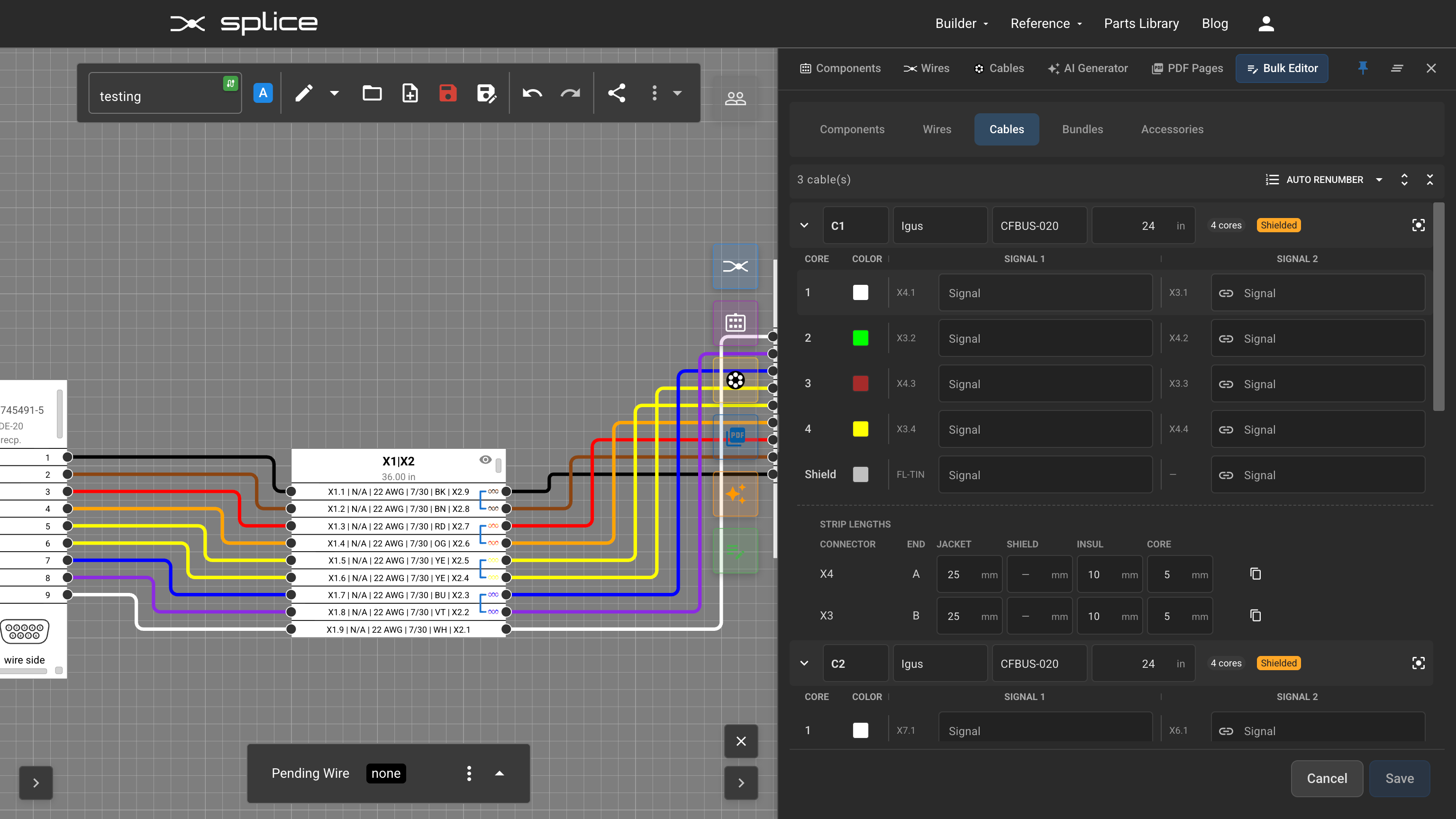 Cables tab — core list with signal labels and strip length schedule per connector end.
Accessories Tab
Manage protective and functional accessories attached to cables and bundles — heat shrink (HS), conduit (CV), braid (BR), cable ties, sheath, spiral wrap, labels, and more. Each accessory has:
- Type badge (click to change), position along the bundle with end reference, length
- Part number, manufacturer, and description
- Add, delete, and copy/paste accessory properties between entries
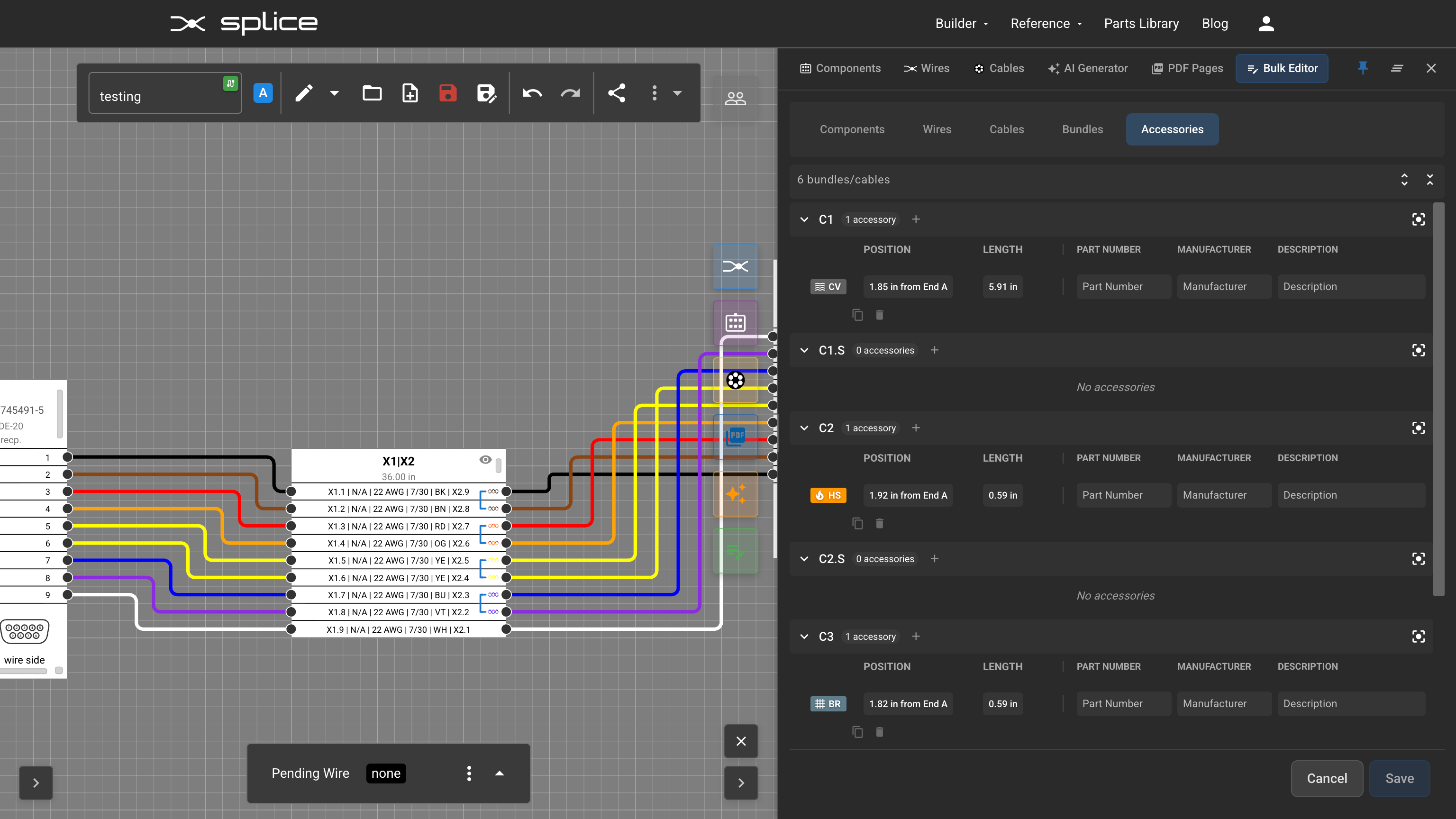 Accessories tab — manage heat shrink, conduit, braid, and other accessories per cable or bundle.
Save / Cancel Workflow
All changes across every tab are staged as pending changes, highlighted in blue until you save. Click Save to commit all changes at once (with full undo/redo support), or Cancel to discard everything.